Features & sales workflow
See the real app screens, the flow from opening a table to closing the shift, and features for buffet restaurants.
Take a look at the real app
Every image comes from the actual Deltafood Lite. Click an image to enlarge it.
A floor plan that reads at a glance
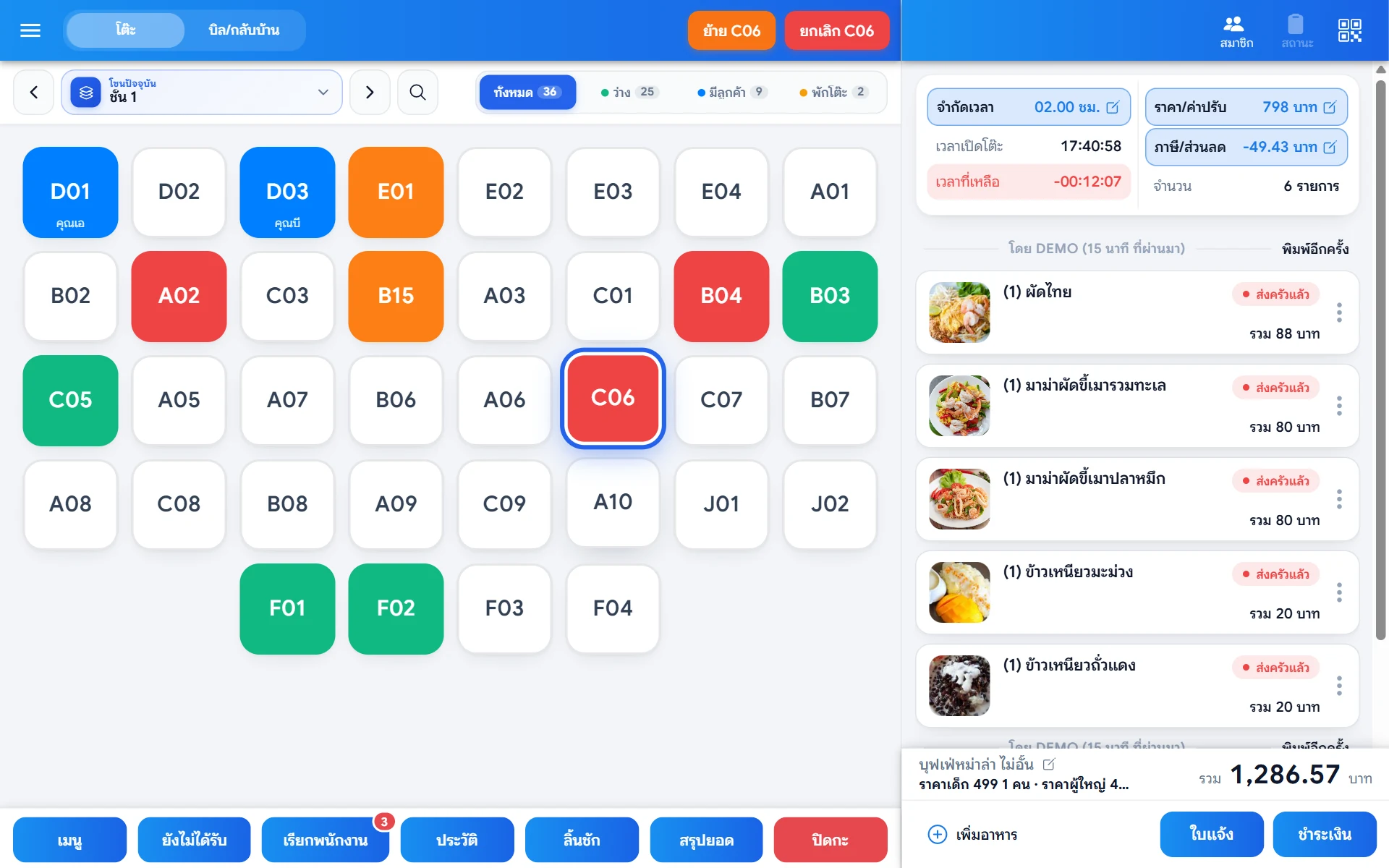
Pick a zone, search tables and filter by All / Free / Occupied / Cleaning. Table colours show their state instantly, and the right panel shows the selected bill with open time, time left and the total.
- Switch zones with the picker or previous/next buttons
- Search by table or customer name
- Table time limit with countdown and fine
- Move table / cancel bill from the top bar
Screenshots are from the real app. Data shown is sample data.
From seating guests to closing the shift
Floor staff, kitchen and cashier work from the same live data.
- 01
Open a table
Pick a table on the plan or open a take-away bill; set the head count and table time.
- 02
Take the order
Choose dishes, options and notes — or let guests scan a QR and order themselves (when enabled).
- 03
Send to kitchen
Print the ticket on the kitchen printer, combined or split by kitchen.
- 04
Track status
Update item status as work progresses; handle out-of-stock and cancellations.
- 05
Check the bill
Print the bill with a payment QR for the guest to scan.
- 06
Take payment
Accept cash, QR transfer or card, then print a receipt or tax invoice.
- 07
Close shift & review
Count the cash, close the shift and see the day summary instantly.
Item status on the bill
Every device sees the same status
- 1Sent
- 2Cooking
- 3Done
- 4Served
- Out of stock
- Cancelled
Guests scan a QR and order at the table
Guests open the menu on their own phone, choose dishes, options and toppings, and send the order straight to the restaurant — no manual order taking, shorter waits and fewer mistakes.
Simple in 4 steps
- 1
Print the table QR
Print each table’s QR from the app and place it on the table.
- 2
Guests scan and open the menu
They scan with their phone and see the menu, recommended items and prices with photos.
- 3
Choose dishes and options
Add to the basket, pick sizes and toppings, leave a comment and set the quantity.
- 4
Send to kitchen and track status
The order reaches your system. Guests can see what they ordered, its status and the total, and call staff.
Guest-menu screenshots from a sample restaurant
What guests and restaurants get
A beautiful menu with photos
Organised by category with recommended items, buffet tags and a clear “sold out” badge.
Full options, toppings by guests
Required options follow your min–max rules, toppings have quantities, and there is a comment box.
Call staff instantly
A call-staff button on the main page, which you can turn on or off in settings.
Configured by the restaurant
Show recommended and news menus, allow guest comments, and choose a single-page or by-group menu.
Per-head buffet, table timers and overtime fines
Set buffet prices by type, enter the head count, let guests order refills and give each table a time limit with a countdown.
- Adult / child / senior
- Refill
- Countdown
- Fine
Per-head prices by type
Set separate prices for adults, children or seniors, with buffet product groups, and edit the head count later.
Refill menu
Tag refill and buffet products. Items included in the buffet are charged at 0 baht, as configured by the restaurant.
Table time limit + countdown
Set the time in hours, see open time and time left, and watch the table colour change when time is almost up or exceeded.
Price / fine
Enter a fine on the bill from the right-hand panel; it is added to the total and shown on the customer display.

Ready to make your front of house run smoother?
Contact the Deltasoft team to ask about packages, installation and how Deltafood Lite fits your restaurant.
Or email us[email protected]